
A surprising number of Samsung TV display errors — including "No Signal," flickering, or intermittent picture loss — trace back to something as simple as a loose or failing HDMI cable. Checking and replacing these cables is a quick, low-cost troubleshooting step that's often overlooked in favor of more complex software fixes.
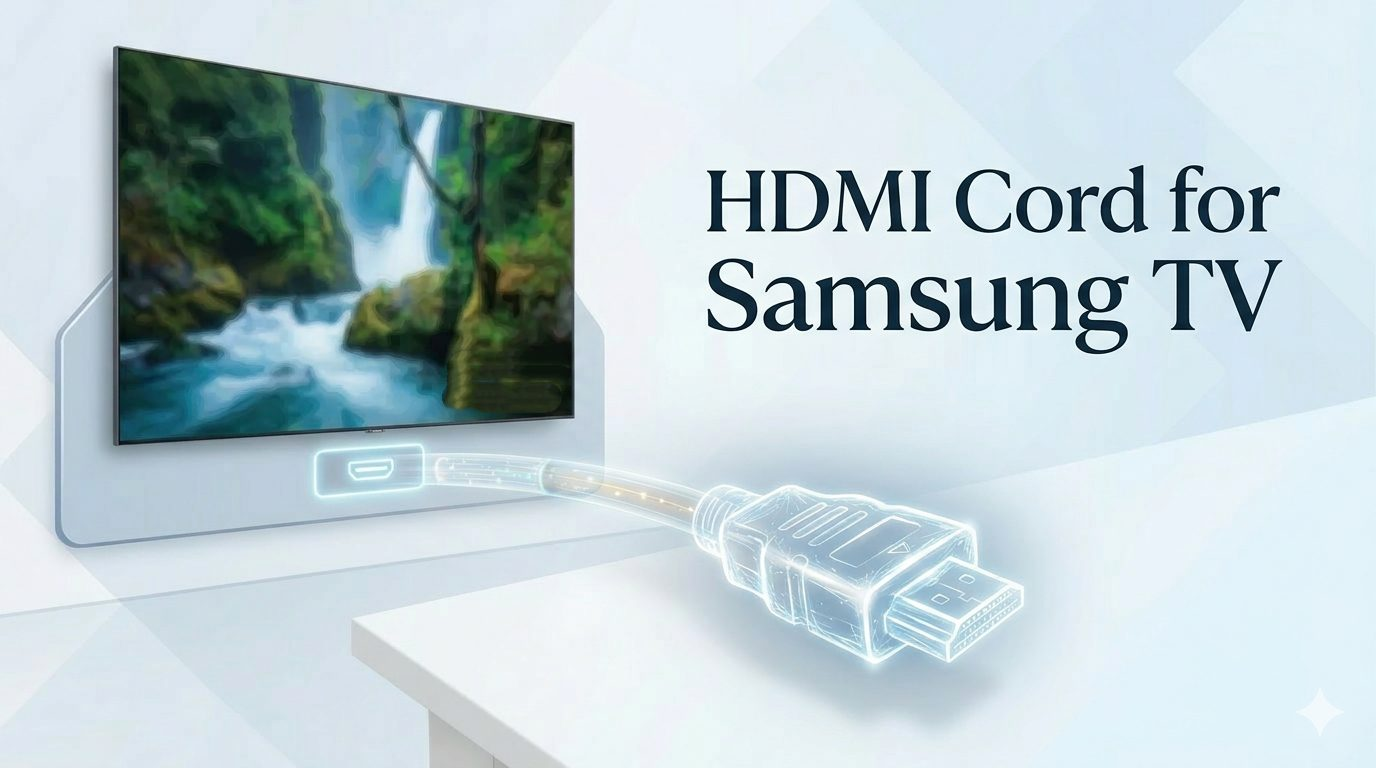
Why HDMI Cables Cause TV Errors
HDMI cables carry both audio and video signals between your TV and connected devices like game consoles, cable boxes, soundbars, and streaming devices. Over time, cables can degrade, connectors can loosen, and cheaper cables may struggle to carry high-bandwidth 4K or HDR signals reliably.
Signs of an HDMI Cable Issue
- "No Signal" message despite the connected device being powered on
- Picture flickers, cuts out intermittently, or shows visual artifacts
- Audio drops out while video continues playing
- The TV fails to detect a connected device at all
- Issues only occur with 4K or HDR content, but not standard HD
Step-by-Step Instructions
1. Power Off Connected Devices
Turn off the TV and any connected HDMI devices before handling cables, to avoid signal errors during reconnection.
2. Inspect Each HDMI Cable
Look for visible fraying, bent connectors, or damage along the cable length.
3. Reseat Every Connection
Unplug each HDMI cable from both the TV and the connected device, then firmly reinsert them, ensuring a snug fit on both ends.
4. Test a Different HDMI Port
Move the cable to a different HDMI port on the TV. If the issue disappears, the original port itself may be faulty.
5. Swap in a New Cable
Replace the suspect cable with a certified high-speed HDMI cable, especially if you're using 4K, HDR, or high-refresh-rate content, which requires greater bandwidth than older cables can support.
6. Test With a Different Device
Connect a different HDMI source (like a laptop or streaming stick) to the same port to determine whether the issue is cable-related or specific to one device.
Additional Tips
- Always choose "High Speed" or "Ultra High Speed" HDMI cables for 4K and HDR content
- Avoid excessively long HDMI cables (over 15 feet) without a signal booster, as they're more prone to signal degradation
- Label your HDMI cables and ports to make future troubleshooting faster
When to Move On
If picture or signal issues persist even after testing multiple cables, ports, and devices, the problem may be internal to the TV rather than the cabling, and a factory reset or professional diagnosis may be needed.